Turn an SMS reply into a PT Upsell Lead
Use this tutorial to send one Demo Gym SMS to yourself, let the marketing assistant answer within a tightly defined offer, and confirm that genuine interest creates a Personal Training Upsell Lead in Identified.
This practice run should finish with exactly one contact, one-person Segment, delivered SMS, bounded AI conversation, and open PT Upsell Lead.
Use only your own mobile number and email address. Work only in Demo
Gym, begin every name and message with [DEMO], and do not publish unless
the Segment count is exactly 1. This reply and Lead-capture workflow is
for an SMS Broadcast; an Email Broadcast cannot handle replies or create
this Lead through this path.
Before you begin
You need access to:
- the Demo Gym Marketing Test Bench ;
- Campaigns → Segments and Campaigns → Broadcasts in Admin;
- the Club App and Demo Gym;
- your own phone, able to receive and reply to SMS; and
- your own email address.
Do not edit the Personal Training Upsell pipeline or any of its stages. Its current Entry stage is Identified, which is the result this tutorial tests.
Create a clean practice member
- Open the Marketing Test Bench .
- If your old practice contact appears, select Clear a test contact. Keep your own displayed phone and email in the dialog, select Clear this contact, review the Cleared report, and select Done.
- Enter a practice name beginning with
[DEMO], plus your own mobile number and email address. - Under Starting state, choose Member.
- Select Create my practice contact.
- Confirm the contact card shows Member and Texts allowed. Copy the phone number exactly as the Test Bench displays it; you will use that value in the Segment.
Expected result: your practice contact is a Demo Gym Member, and Texts is allowed.
Build a one-person Segment
-
Open Campaigns → Segments and select New Segment.
-
Enter the name
[DEMO] PT Intro – [Your Name]. -
Leave Match set to ALL.
-
Add these conditions:
Field Operator Value Club Code equals demoPhone equals the phone shown on your Test Bench contact SMS Consent equals Yes -
Optionally add Email equals your Test Bench email address.
-
Wait for Estimated audience to update. Do not continue unless it shows 1 member.
-
Select Create Segment. Open the Segment row menu, choose Recalculate Size, and confirm the saved size remains 1.
If the count is 0 or greater than 1, stop. Do not weaken the conditions and do not publish a Broadcast while the count is wrong.
Expected result: the saved Segment audience count is exactly 1.
Create the SMS Broadcast
- Open Campaigns → Broadcasts and select New Broadcast.
- Enter the name
[DEMO] PT Intro Offer – [Your Name]and select Next. - Keep Use existing segment, choose
[DEMO] PT Intro – [Your Name], and confirm Estimated audience: 1 member. Select Next. - Under Channel, choose SMS.
- In SMS Message, paste this exact copy:
[DEMO] Ready for extra coaching? Get 50% off a PT Intro package. Reply if you’d like details.
- Review the SMS character, segment, and cost estimate, then select Next.
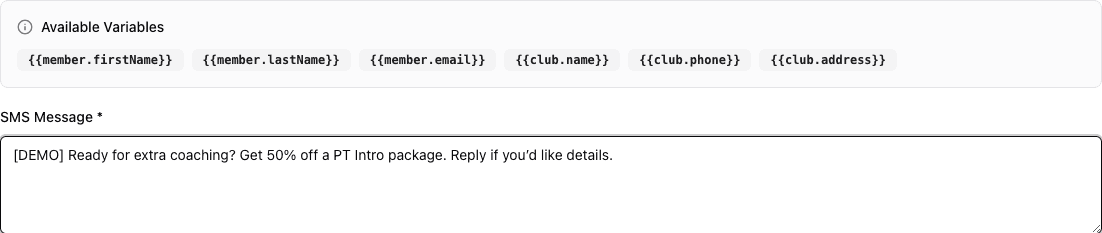
- 1Paste the exact Demo offer into SMS Message.
Configure AI replies and Lead capture
- On Keywords, leave the keyword list empty for this practice run.
- Turn on Let the AI assistant handle other replies.
- In Guidance for the assistant, paste this exact guidance:
This is a demo offer for 50% off one PT Intro package. Discuss only this offer. Do not invent a dollar price, expiration date, availability, eligibility rule, number of sessions, additional benefit, or another discount. If the member clearly expresses interest in the PT offer, treat that as sales intent. For questions outside this offer, say that club staff can follow up. Do not promise that staff will contact the member. If no sales intent was captured, ask the member to call Demo Gym for help.
- Set Capture interested leads into to Personal Training Upsell.
- Leave Engage captured leads at stage set to Entry stage (default). The Entry stage for this pipeline is Identified.
- Select Next.
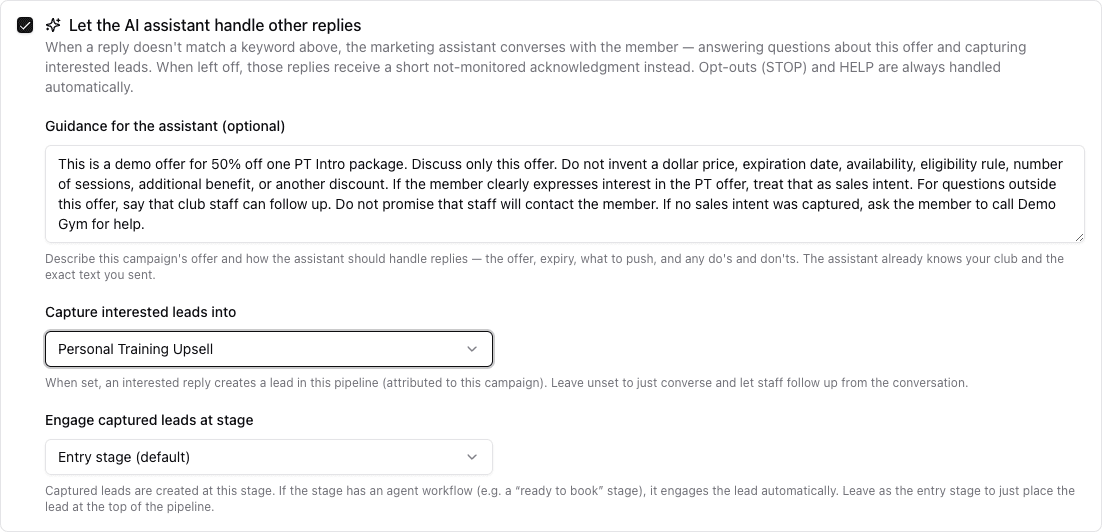
- 1Turn on AI handling for non-keyword SMS replies.
- 2Paste the exact offer boundaries and sales-intent rule.
- 3Route interested replies to Personal Training Upsell.
- 4Keep Entry stage (default), which is Identified here.
Expected result: AI handling is on for this SMS Broadcast, its answers are limited to the stated Demo offer, and interested replies are routed to Personal Training Upsell → Entry stage (default).
Publish and reply from your phone
Run this practice between 9:00 AM and 9:00 PM Demo Gym local time. If the Schedule page shows a narrower SMS delivery window, use that window instead. Outside the allowed window, FitStack counts the recipient under Held for quiet hours and waits for the window to open; an immediate publish does not override quiet hours.
- On Schedule, keep Send immediately after publishing for this controlled practice run.
- Select Publish & Send.
- In the confirmation, verify the Broadcast name, SMS channel, and fresh audience count of exactly 1. If the count is anything else, cancel.
- Select Send to 1 person and wait for the SMS on your phone.
- Reply naturally with genuine interest. Use this example if helpful:
Yes, I’m interested. What does the PT Intro include?
- Read the assistant’s reply. If needed, ask one short follow-up about the offer. Do not supply or request invented price, timing, availability, eligibility, session count, benefits, or another discount.
Expected result: the SMS is delivered to your phone, and the assistant responds only within the configured offer boundaries. When it does not know a term, it says club staff can follow up instead of inventing an answer.
Verify the Lead in Admin
- Return to the Marketing Test Bench .
- In What happened, select Refresh if the conversation has not appeared yet. The page also refreshes automatically while a conversation is active.
- Confirm the outbound offer, your interested reply, and the assistant’s response appear on the timeline.
- Under Sales pipelines, confirm Personal Training Upsell · Identified stage · open.
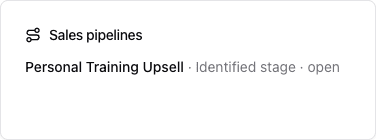
- 1Confirm the Personal Training Upsell pipeline.
- 2Confirm Identified and open.
Expected result: the conversation appears on the Test Bench, and one open Personal Training Upsell Lead exists at Identified. If an open Lead already existed in this pipeline, FitStack adds the new interest to that Lead instead of creating a duplicate; clearing the old test contact before starting prevents that ambiguity.
Verify the Lead in the Club App
-
Open the Club App and select Demo Gym.
-
Expand Leads and open Personal Training Upsell.
-
Select All. The board opens on Mine, and a newly captured Lead can be unassigned, so it may not appear until you switch filters.
-
Search for your Test Bench practice name.
-
Confirm the Lead appears in Identified, then open it.
-
In Lead Details, confirm:
- the member name and contact details match your Test Bench contact;
- the stage badge is Identified;
- Source is AI AGENT; and
- the Timeline contains the Lead creation and marketing-reply note with
[DEMO] PT Intro Offer – [Your Name].
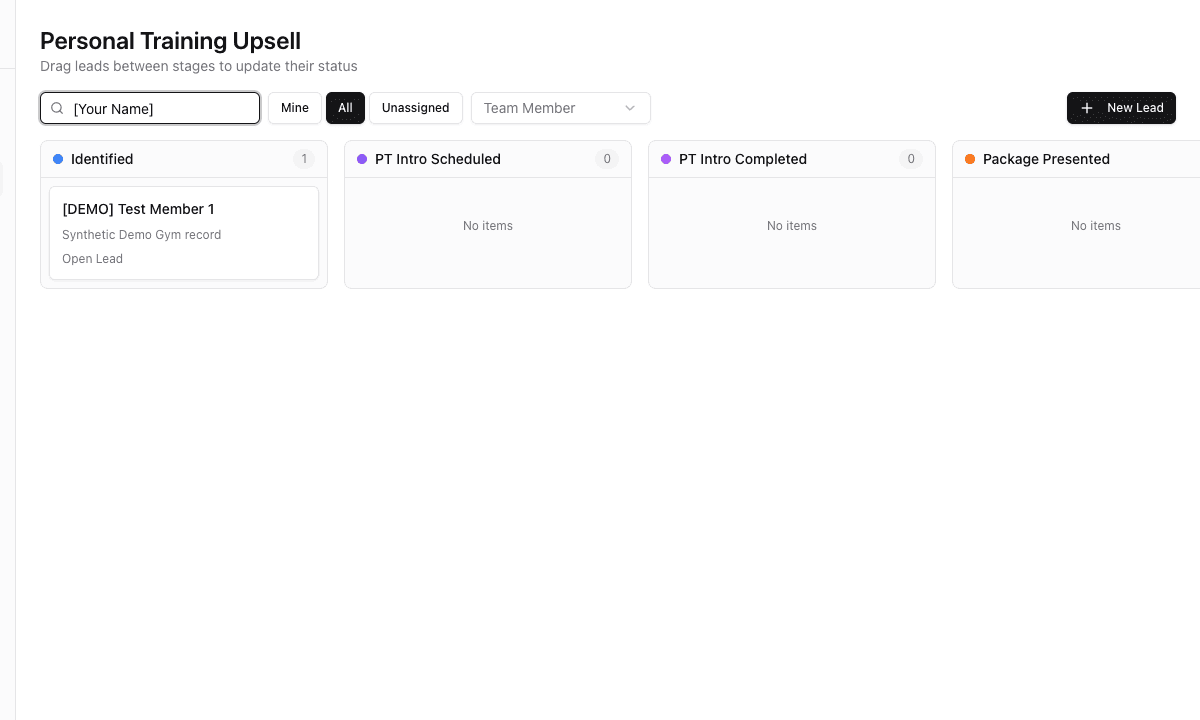
- 1Search for your Test Bench practice name.
- 2Use All so an unassigned captured Lead is visible.
- 3Confirm the result is in Identified.
- 4Open the single matching Demo Lead.
Expected result: one open Lead appears in Personal Training Upsell → Identified for the Demo Gym member, with AI source and campaign context on its timeline.
Clean up the practice contact
- Return to the Marketing Test Bench .
- Select Clear a test contact.
- Keep your own phone and email in the dialog. Both fields match independently, so do not enter anyone else’s information.
- Select Clear this contact.
- Review the Cleared report, then select Done.
The clear removes the matching practice member, Leads, conversations, booking
holds, and practice-contact registration. It does not delete the saved Segment
or published Broadcast. If you repeat the tutorial, rebuild the practice
contact, recalculate the Segment to 1, and create a newly named [DEMO]
Broadcast.
SMS opt-outs are preserved. If you replied STOP, reply START while the practice contact still exists and confirm Texts allowed before you clear it. If you already cleared the contact, rebuild it, select Give permission again on the Test Bench, and confirm Texts allowed before testing again.
Expected result: the clear report shows the practice member, Lead, conversation, holds, and registration removed. If you did not opt out, your details are ready to be rebuilt for another practice run.
Troubleshooting
| Problem | Recheck before contacting support |
|---|---|
| Segment count is not 1 | Confirm the Test Bench contact is a Member, Texts allowed is visible, Match ALL is selected, Club Code is exactly demo, Phone exactly matches the displayed Test Bench phone, SMS Consent is Yes, and any optional Email value is exact. Then use Recalculate Size. |
| SMS does not arrive | Confirm the Broadcast channel is SMS, the publish confirmation counted exactly 1, the Broadcast was actually published, the phone is your SMS-capable number with country code, and the Test Bench still shows Texts allowed. Review Broadcast delivery outcomes. Held for quiet hours counts recipients whose delivery window was closed when the Broadcast ran; it is a record of what happened, not a list of who is still waiting. If the Broadcast is still Sending, delivery work may remain — wait for the allowed Demo Gym local window to open. Once it shows Completed, nothing is pending regardless of what this number says. If you previously sent STOP, reply START while the contact still exists. If you already cleared and rebuilt it, select Give permission again on the Test Bench before trying again. |
| AI replies, but no Lead is created | Confirm Let the AI assistant handle other replies is on, Capture interested leads into is Personal Training Upsell, and your reply clearly states interest rather than only asking a general question. Confirm the practice contact is still a Member. Check for an existing open Lead in the same pipeline; FitStack adds a note instead of creating a duplicate. |
| Lead is in the wrong pipeline or stage | Open the Broadcast detail and read its AI replies summary. It should say Lead capture uses Personal Training Upsell at the entry stage. In the Club App, switch from Mine to All and make sure you opened the right [DEMO] Lead. Do not change the pipeline or its stages. Stop using the published Broadcast; when Clone is available, clone it to a new Draft or create a new [DEMO] Broadcast, correct the settings, clear the test contact, and rerun. |
What you completed
You created one Demo Gym practice member, one one-person Segment, one delivered SMS Broadcast, one bounded AI conversation, and one Personal Training Upsell Lead in Identified—then removed the practice contact so the exercise can be run again.