Build and publish the workflow
The workflow defines what happens after enrollment. It is versioned separately from the Journey campaign.
Coming soon: select shared Campaigns Email and SMS Templates inside Journey message steps. Today, configure Journey message content directly in the workflow editor. This planned message-content reuse is different from choosing a Journey workflow template when creating the Journey.
Open the editor
Open the Journey, select Diagram, then Edit Workflow.
The Diagram tab shows the open draft when one exists; otherwise it shows the published version. Read the Draft or Published badge before interpreting the steps. A draft is proposed work and does not replace the published version used for new enrollments until workflow Publish succeeds.
Add and arrange steps
Use the palette:
| Step | Operational result |
|---|---|
| Send Message | sends Email or SMS content |
| Call to Action | sends a tracked link and records its configured outcome |
| Wait | pauses for a fixed duration |
| Wait for Event | continues on a supported event or timeout path |
| Branch | chooses a path from member or prior-send conditions |
| Sales Opportunity | creates or connects a lead to a configured pipeline destination |
| Eligibility Gate | rechecks consent, duration, and message limits |
| Exit | ends the enrollment as completed or exited |
Journey SMS waits for the member club’s quiet-hours window; Journey Email does not. Journeys do not use the separate Broadcast delivery-hours setting. See Quiet hours and messaging.
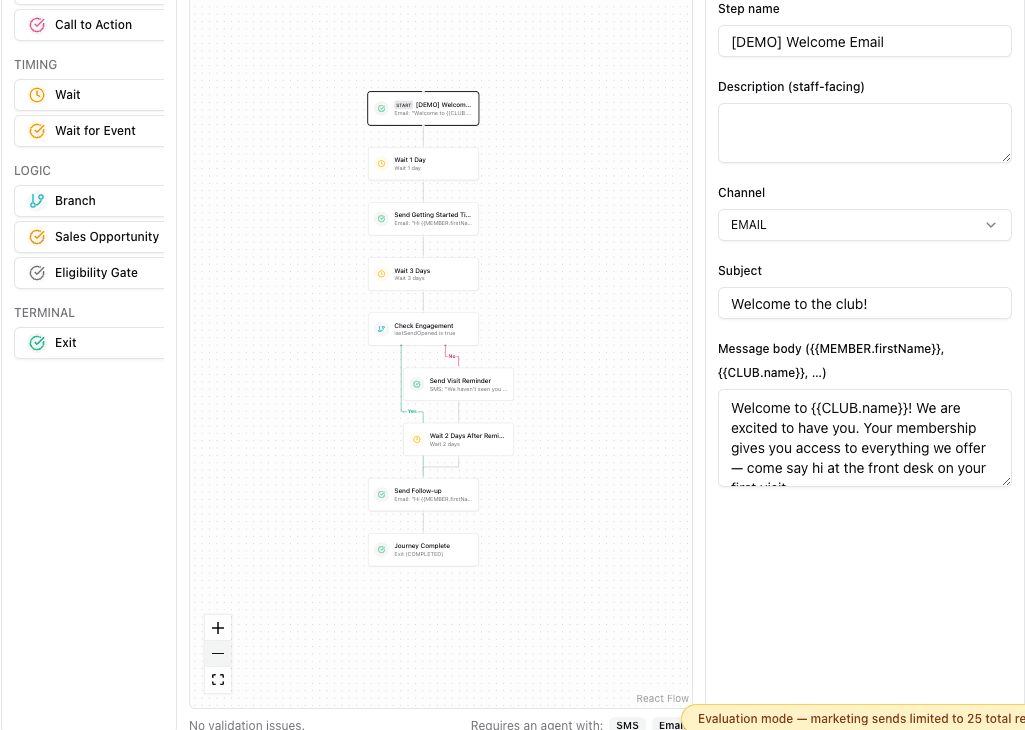
- 1Add outreach, timing, logic, or terminal steps.
- 2Read the start and message sequence from the top.
- 3Follow both labeled outcomes from each branch.
- 4End every reachable path with an intentional Exit.
Configure each step
Select a canvas node and use the inspector.
- Give each node a name that describes the action.
- Use only Email or SMS for Journey messages.
- Review subject, body, links, and supported personalization.
- Use a valid URL and deliberate outcome for a Call to Action.
- Point every Branch and event timeout to a reachable next step.
- Configure a node-level sales destination or the Settings fallback.
- Put an Eligibility Gate on every path that can reach outreach after the configured Max Duration.
- Set an Exit to Completed only for an intended endpoint.
Save Draft
Select Save Draft to persist the editable version. Saving does not change the currently published workflow.
Resolve every editor validation error. Pay special attention to unreachable nodes, cycles without a wait, missing targets, invalid destinations, and paths without a valid exit.
Publish the workflow version
Select workflow Publish only after the saved draft is valid. Then return to Diagram and confirm the expected version carries the Published badge.
Publishing a new workflow version affects new enrollments only. Every in-flight enrollment keeps the version it started with, so changing a live workflow does not rewrite steps already underway.
Before Journey publish
The Journey itself still needs a publishable configuration:
- a bound workflow with a published version;
- at least one entry trigger;
- a structurally valid graph;
- valid sales destinations where required.
Workflow Publish and Journey Publish are separate actions.