Manage enrollment locations
An enrollment location is a place where staff sign up or check in members outside the physical club. It has its own identity, address, phone, date range, weekly schedule, and exceptions.
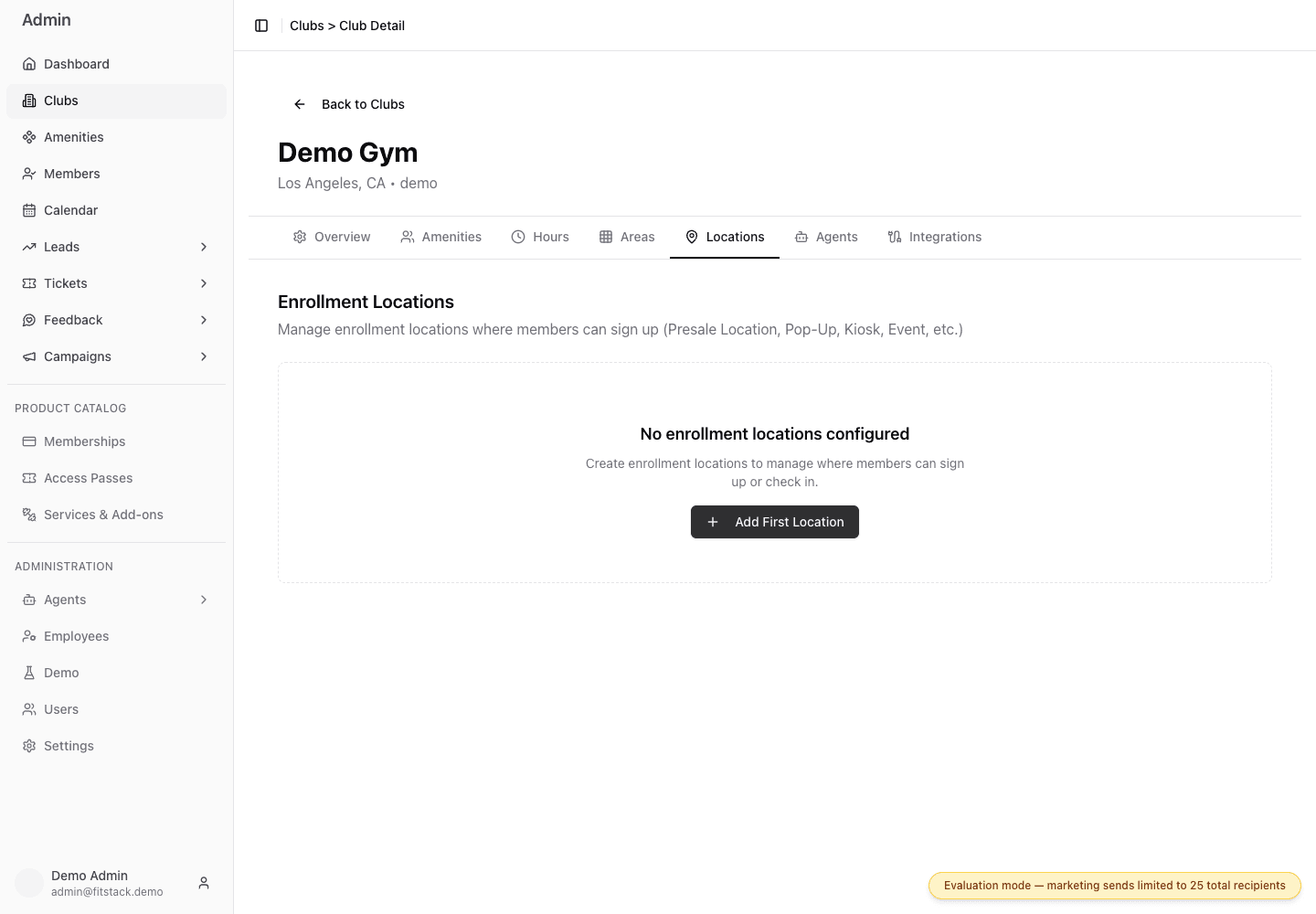
- 1Use Locations for places outside the physical gym.
- 2Add the first enrollment location from this club.
Canonical examples
Presale enrollment office
The club being built remains the club record, with its future permanent address. Create a Presale Location for the temporary sales office where staff enroll founding members before the club opens.
The presale location should carry its own:
- recognizable name;
- sales-office address and phone;
- opening and planned closing dates; and
- enrollment hours and holiday exceptions.
Follow the complete Set up a presale enrollment location tutorial.
Staffed kiosk or mall booth
Create a Kiosk or Mall Booth when staff enroll members from a shopping center, event space, or other off-site station. Use the station’s actual address, contact number, planned operating dates, and staffed hours. End Date records the plan but does not automatically deactivate or hide the location.
Available location types
Choose the closest supported type: Presale Location, Pop Up, Kiosk, Mall Booth, Partner Location, Corporate Event, or Other. If you choose Other, enter the required custom type.
Add the location
Open Admin → Clubs, select the club, choose Locations, and select Add Location. Enter the name, type, optional address and phone, required start date, and optional end date.
Set its own weekly hours
After creating the location, open its card or choose Manage Hours. Enter the staffed weekly schedule and select Save Hours.
Enrollment locations do not inherit the club’s weekly schedule. Without saved location hours or a date exception, current availability logic treats the location as closed.
Add location exceptions
Add a dated exception for holiday hours, a temporary closure, a special event, or any day that differs from the normal location schedule. The exception wins over the regular location hours for that date.
Verify the complete record
Check the location card and hours page together. Confirm the type, address, phone, start and end dates, weekly hours, and upcoming exceptions.
If an exception list shows a date one day early in a browser west of UTC, choose Edit, confirm the unshifted Date field, and close without saving. Do not correct the record from the shifted list label alone; for a split schedule, use Edit only for this read-only date check.
Do not replace the club’s permanent address with a presale office or kiosk address. The club and enrollment location are separate records with separate schedules.
Edit or delete a location
Use the location action menu for Edit Details, Manage Hours, or Delete. Deletion removes the location and its schedule and cannot be undone. For a planned temporary location, keep End Date accurate as planning metadata and maintain the operating schedule through the final staffed day. The end date does not retire the record automatically. After the location closes, follow the brand’s retention policy and delete it manually only when it should no longer remain in Admin.