Create an amenity
Create an amenity only when the offering is meaningfully different from an existing catalog item. Search names and aliases first so members and agents do not encounter duplicate choices.
Choose the correct group
Open Admin → Amenities, find the group where the amenity belongs, and select + Add Amenity inside that group. The new amenity is created at the end of that group.
If no suitable group exists, create the group first.
Complete the basic information
Enter a member-facing Name and a unique Code. Use a short, stable,
lowercase code with hyphens, such as cold-plunge. Avoid changing a code after
links or integrations may depend on it.
Write the Description as a plain factual summary. Use Marketing Callout (AI Context) for the more compelling explanation an agent or marketing experience can use when describing why the amenity matters.
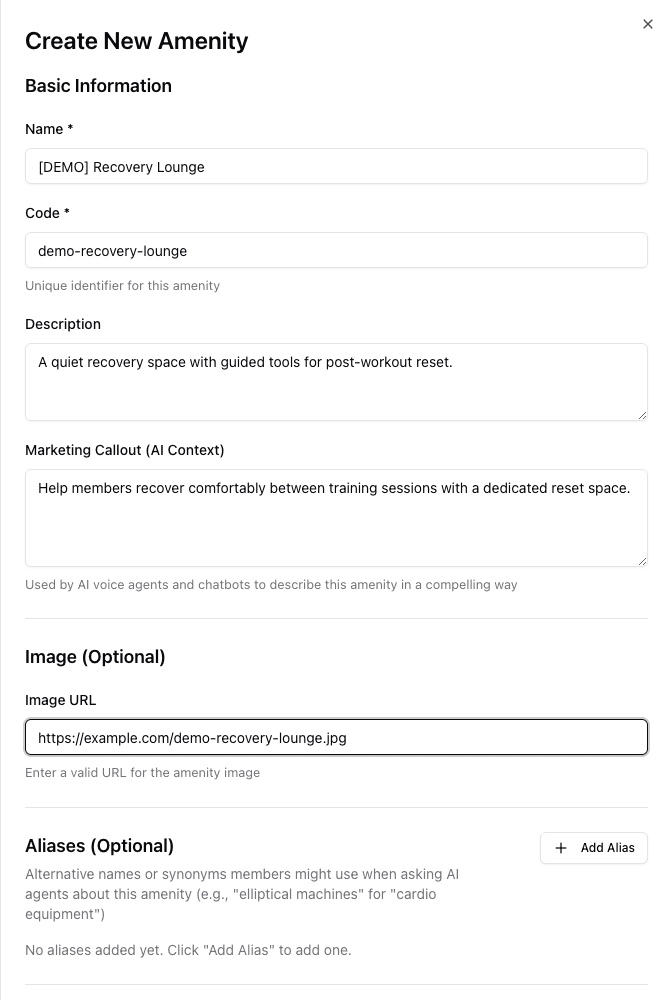
- 1Name is the member-facing label; code is the stable identifier.
- 2Keep the description factual and the marketing callout useful to supported agents.
- 3Use a stable, publicly reachable image URL.
Add image and knowledge context
Provide an Image URL when an amenity-specific image is available. Use a stable HTTPS URL that can be loaded without signing in; this prepares the record for landing pages and other consumer presentation.
Add:
- Aliases for real phrases members use, including common abbreviations and variations that mean the same thing;
- Alternative Amenities that are honest substitutes an agent may suggest when this amenity is not offered at a club; and
- no unrelated keyword variants merely for search volume.
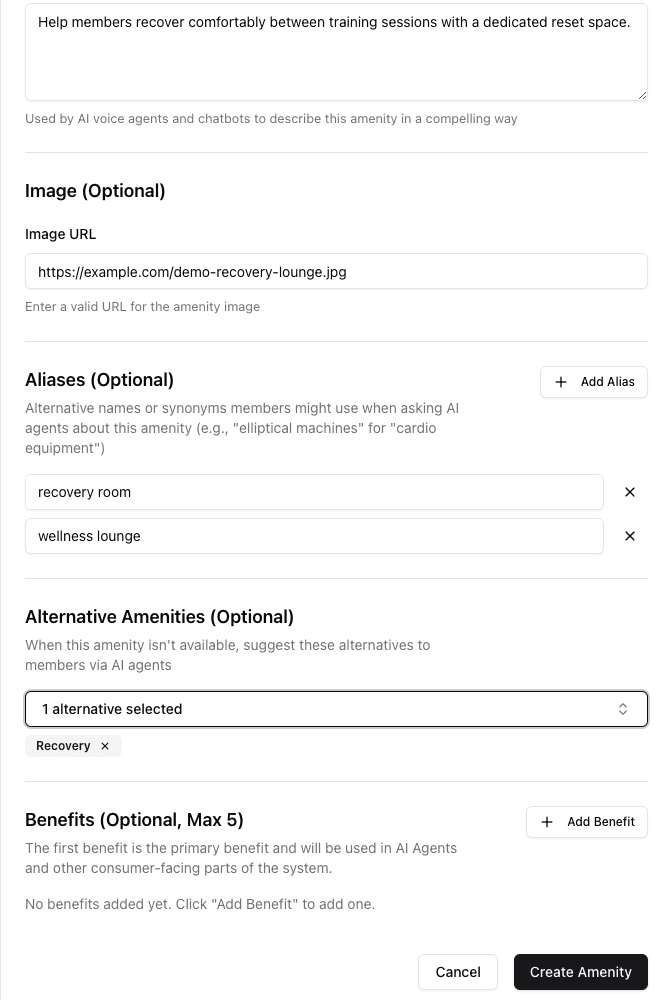
- 1Add phrases that members genuinely use for the same amenity.
- 2Select only credible substitutes for an unavailable amenity.
Add and order benefits
Add up to five benefits, each no more than 125 characters. Put the strongest, most generally useful benefit first: the first item is the Primary benefit used when a supported experience highlights the amenity first.
Drag benefits into the order a member should hear or read them. Describe member outcomes rather than internal features, unsupported health claims, or promises that vary by club.
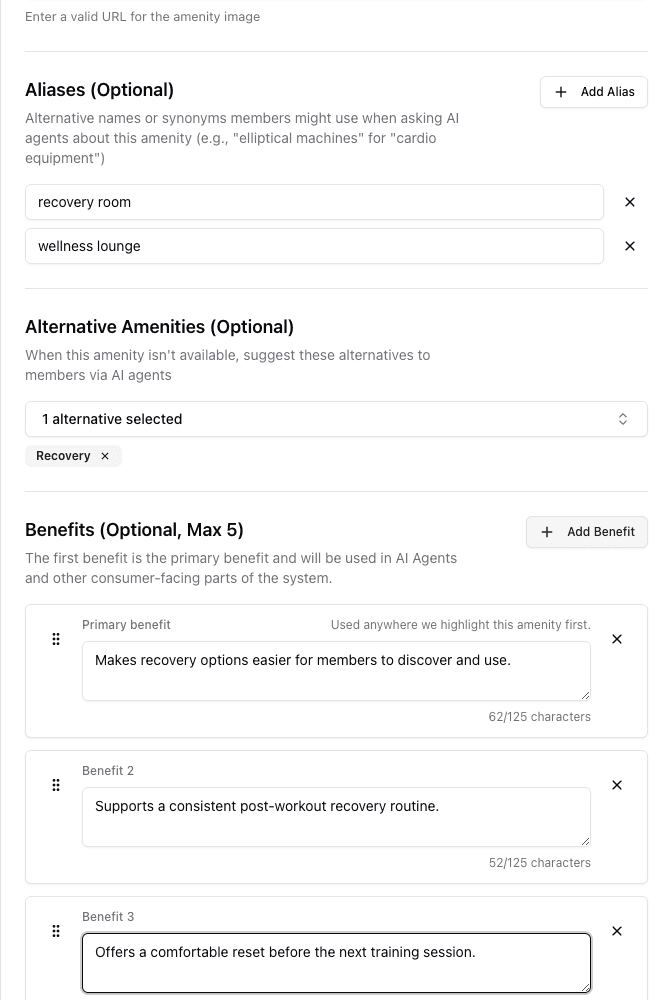
- 1Lead with the primary member benefit.
- 2Drag to change benefit priority before saving.
Create and position the amenity
Review every field, then select Create Amenity. The amenity appears at the end of its group. Drag it toward the intended position, wait for the success message, then refresh and verify the saved order. If the same placement mismatch repeats after one retry, stop and ask FitStack support or the product owner to correct it.
See Groups and display order before moving an item across groups.
Assign it to the right clubs
Creation adds the item to the shared catalog; it does not claim that every club offers it. Open each applicable club, choose Amenities, select the new item, and select Update.
See Manage club amenities for the assignment workflow.
Do not create one catalog copy per club. Club-specific availability belongs in the club assignment; the catalog definition stays shared.
Field checklist
| Field | What good content does |
|---|---|
| Name | Uses the clear member-facing name |
| Code | Provides a unique, stable identifier for links and integrations |
| Description | Explains what the amenity is in plain language |
| Marketing Callout | Gives supported agents and marketing experiences a compelling, accurate explanation |
| Image URL | Supplies a stable public image for consumer presentation and landing pages |
| Aliases | Captures equivalent terms members actually use |
| Alternatives | Identifies honest substitutes when this item is unavailable |
| Benefits | Describes outcomes, with the strongest benefit first |