Maintain and delete amenities
Edit the shared catalog when the brand definition is incomplete, inaccurate, or outdated. Because clubs link to the same record, one saved edit can improve—or damage—every assigned club experience.
Maintain a record
Open the amenity
Open Admin → Amenities, find the item, and select its edit action.
Review the complete record
Do not update only the field that triggered the request. Check the name, code, description, marketing callout, image URL, aliases, alternatives, benefits, and benefit order together.
Use the field checklist to keep the record useful across public, marketing, and supported agent contexts.
Preserve stable identifiers
Correct the display name when needed, but change Code only after checking public links and integrations. A friendlier name does not require a new code.
Save and verify
Select Update Amenity, reopen the record, and confirm the complete result. Verify a club-assignment tooltip, a supported agent lookup, and any affected public page when the change is important or time-sensitive.
Unassign or delete?
| Situation | Correct action |
|---|---|
| One club stopped offering the amenity | Clear it in that club’s Amenities tab |
| The amenity moved to another catalog category | Drag it into the correct group |
| Content or terminology is wrong | Edit the existing shared record |
| The offering is retired across the entire brand | Audit references, then delete the catalog record |
Use club amenity assignment for a location-specific change. Do not delete the shared record simply to remove it from one club.
Delete an amenity safely
Deletion is permanent. It removes the amenity from the catalog, removes its benefits, and removes its assignments from every club.
Before deleting:
- confirm the offering is retired brand-wide;
- identify every club currently assigned to it;
- review other amenities that name it as an alternative;
- choose replacement alternatives where appropriate;
- capture any content the brand needs to retain; and
- communicate the retirement to website, marketing, and agent owners.
Then select the amenity’s delete action, verify the name in the confirmation, and select Delete.
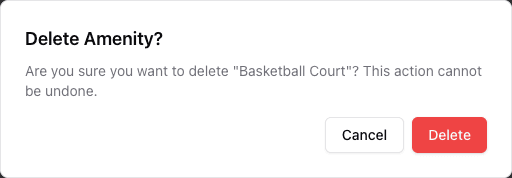
- 1Verify the amenity name and the permanent-action warning.
- 2Delete only after the brand-wide retirement checks are complete.
Deleting an amenity also removes its club assignments and benefits. Another amenity can still hold an old alternative reference, so audit alternatives before deletion and correct them afterward if necessary.
Suggested maintenance rhythm
- Review ordering before major website or campaign launches.
- Check image URLs for public availability.
- Add aliases from real member questions, not speculative keyword lists.
- Keep benefits specific, supportable, and under 125 characters.
- Review alternatives whenever the catalog adds, renames, moves, or retires an amenity.
- Verify club assignments after brand-wide catalog changes.