Create your first segment
This tutorial creates a reusable audience for:
Active members at the Demo club who have email consent.
It teaches the safest starting pattern: where, who, and permission.
Open Segments
In the Admin app, open Campaigns, then Segments. Select New Segment.
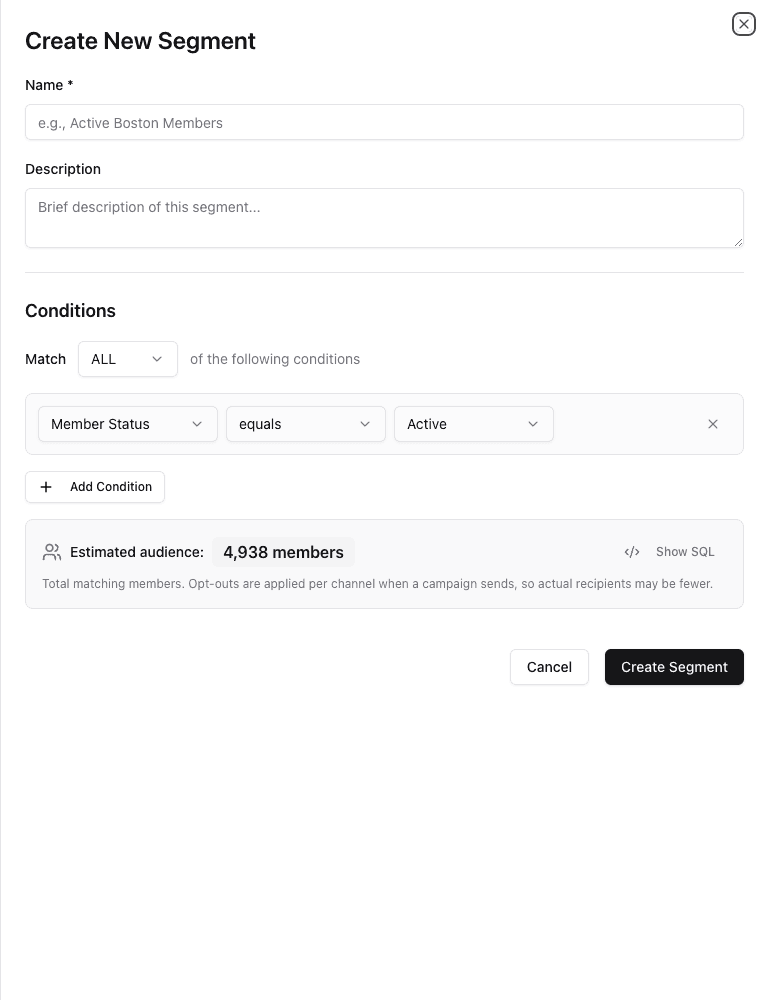
- 1Give the segment a clear, reusable name.
- 2Keep Match ALL for required boundaries.
- 3Add one condition at a time.
- 4Watch the estimate after each change.
Name the segment
Use:
Club | Audience | Channel/Purpose
For this tutorial, enter:
Demo | Active members | Email newsletter
Add a short description if it would help another marketer understand the business purpose. Descriptions are recommended, not required.
Keep Match ALL
ALL means a person must match every condition. This is the right choice when each condition is a required safety boundary.
Add the club condition
Choose:
- Club Code
- equals
- your Demo club code
Stop and check: without a club condition, this segment can match people across every club.
Opens a new unsaved segment, adds Club Code equals demo, and waits for the estimated audience to update to 1,522 synthetic Demo Gym members. No segment is saved.
Confirm active membership
Add:
- Member Status
- equals
- Active
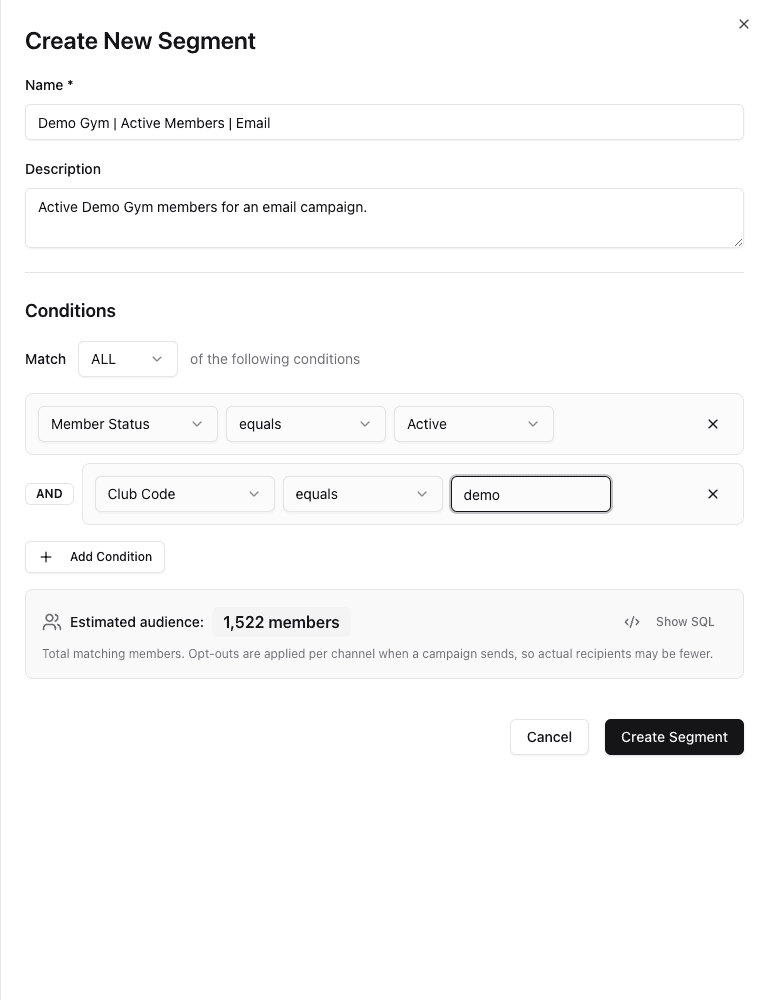
- 1Follow the standard naming pattern.
- 2ALL keeps both current conditions required.
- 3Require an active membership.
- 4Limit the audience to the Demo club.
- 5Check whether the intermediate count is reasonable.
Confirm email permission
Add:
- Email Consent
- equals
- Yes
The finished rule should read:
Club Code equals Demo AND Member Status equals Active AND
Email Consent equals Yes.
Check the estimated audience
Read the count below the conditions. Ask whether the number is reasonable for the Demo club.
A surprisingly large or zero count is a reason to review the filters. Do not save and use a segment until its count makes sense.
Save and verify
Select Create Segment. Find the segment in the list and verify:
- Status is Active;
- Size has a value;
- Count updated shows when the rules were calculated.
What happens later
The displayed size is an estimate, not a send guarantee. FitStack runs the segment again when a broadcast sends and then checks contact details, permission, message-frequency rules, and delivery timing. Learn more in Understand audience counts.
Next step
Use the Filter guide before creating a more complex audience.