Create an Email template
Create an Email template when marketing staff will reuse the same structure, subject pattern, or required footer across Broadcasts.
The Email template editor is an HTML editor. If you are not comfortable reviewing HTML, begin with the supplied structure and ask an approved teammate to review code changes.
Open the Email editor
In the Admin app, open Campaigns, then Templates. Select New Template, then Email Template.
Name and classify the template
Enter a specific internal Name. Add a Description that says when staff should use the template, and choose a consistent Category.
Keep Active on only when the template is ready to appear during campaign creation.
Write the subject
Enter a recognizable Subject Line that matches the body. You can include a
supported variable such as {{member.firstName}}, but the meaning should still
be clear if personalized data needs correction.
Edit the HTML body
Use:
- Code to focus on the HTML;
- Preview to focus on the rendered result;
- Split to compare both at once.
Preserve the HTML document structure unless your team has an approved Email layout. Keep links, dates, prices, club details, and offer conditions explicit.
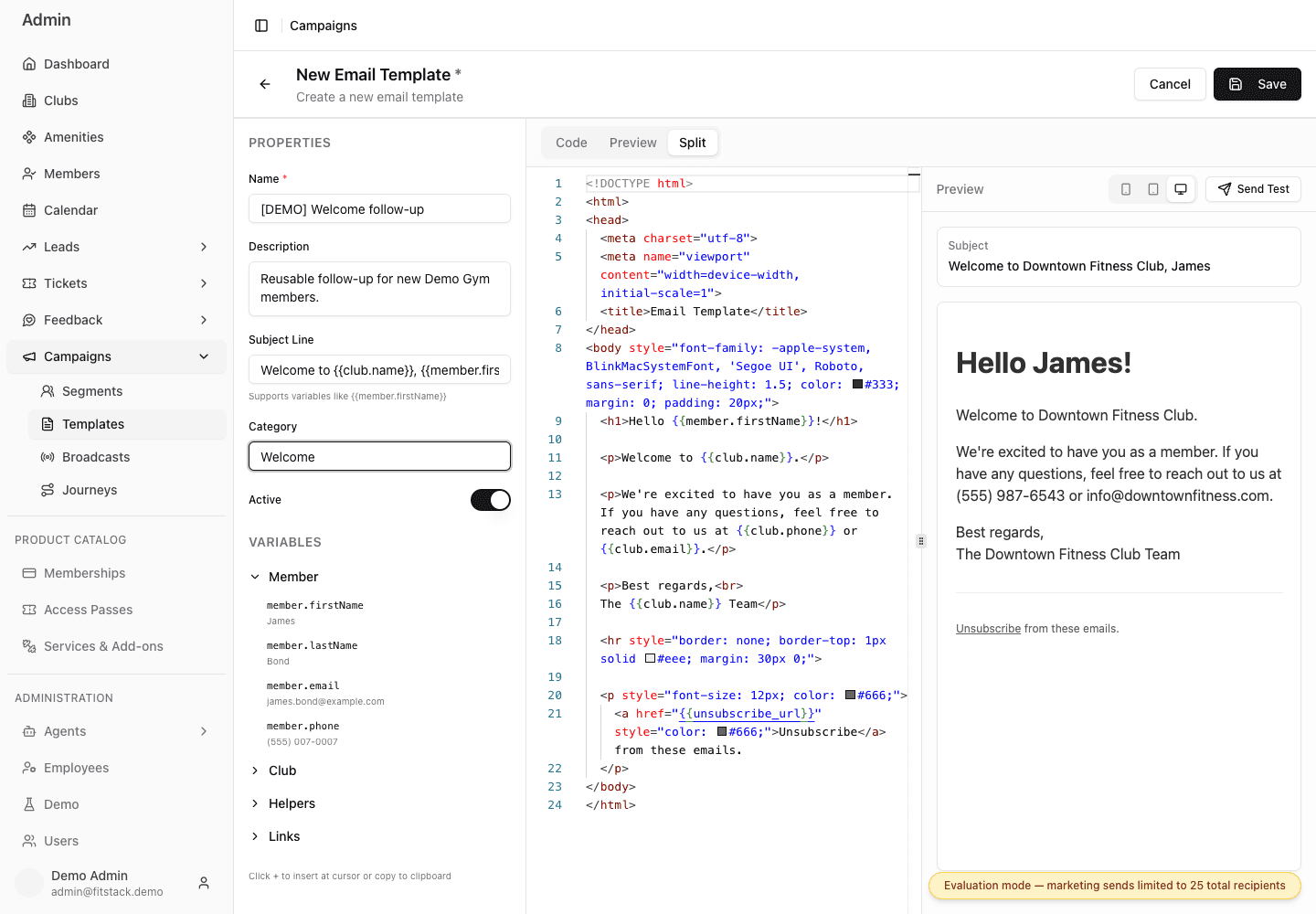
- 1Name and classify the reusable content.
- 2Choose Code, Preview, or Split for the current review task.
- 3Copy or insert only the variables offered here.
- 4Read the subject and rendered body with sample values.
- 5Save only after the reusable content is ready.
Add personalization and unsubscribe
Use the Variables panel to copy a variable or insert it at the current
cursor. Keep the required {{unsubscribe_url}} link in the Email body.
Preview before saving
Read the subject and body with the displayed sample member and club values. Switch between mobile, tablet, and desktop widths. Preview confirms rendering with sample data; it does not prove every real recipient value or destination.
Enters synthetic Demo Email template properties, inserts a supported personalization variable, and compares the Email in Split and mobile Preview views. No template is saved and no test email is sent.
Save the template
Select Save when the name, subject, HTML, personalization, links, and unsubscribe content are ready.
Before you use it in a Broadcast
- Open the saved template again and confirm its active status.
- Send an Email test through your approved review process.
- Select it inside a small, consented test Broadcast.
- Recheck the copied subject and body before publishing.
Continue with Personalize, preview, and test for the full variable reference and test-send safety.