Manage the journey lifecycle
Search the Journeys list by name and use Show archived when reviewing older records. Open the Journey before a consequential action so you can verify its Settings, Diagram, and status.
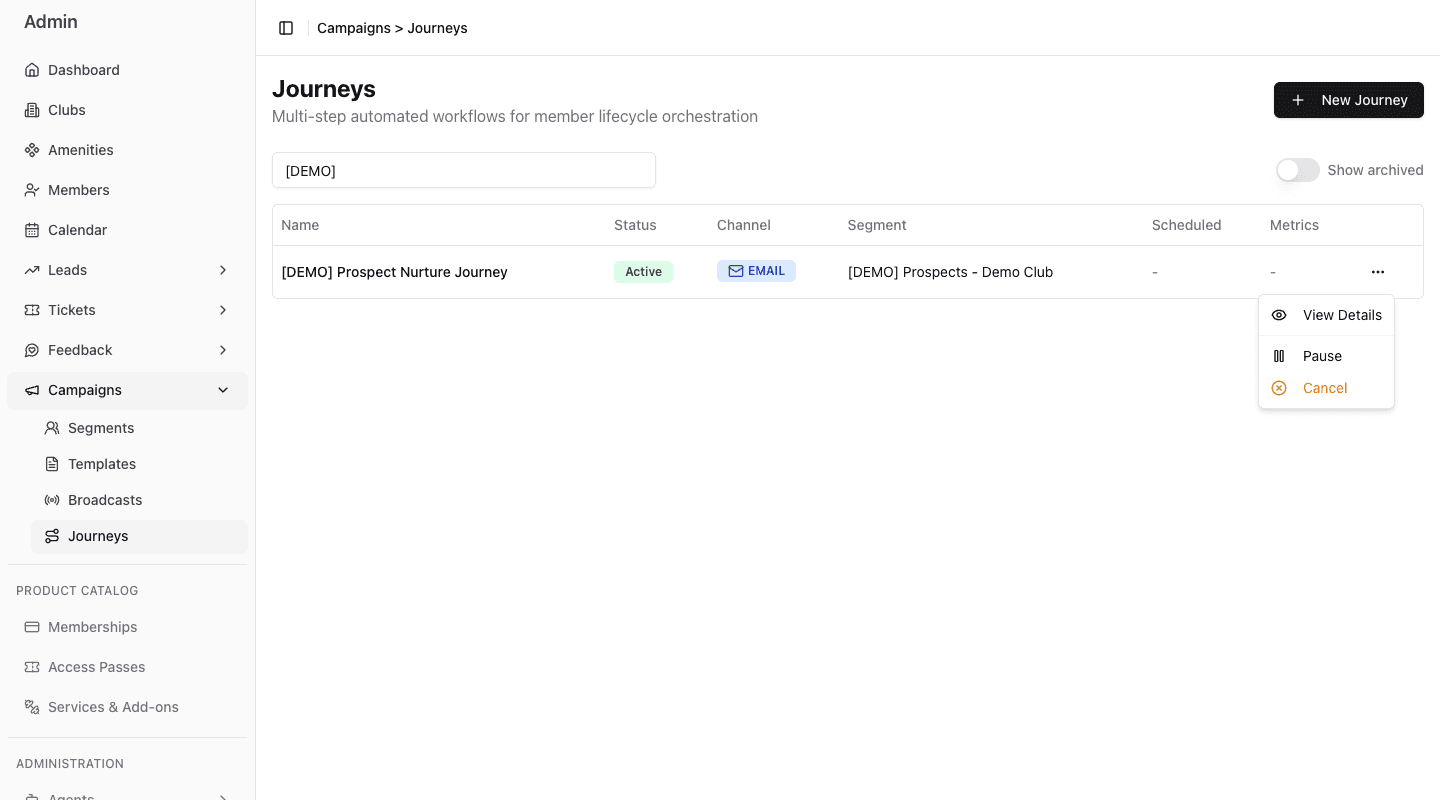
- 1Open details before changing lifecycle state.
- 2Pause to stop new entries and park continuing work.
- 3Cancel ends the Journey and exits nonterminal enrollments.
Publish a Draft
Journey Publish activates the campaign immediately. It does not send every message at once, but future matching trigger events can begin enrollment.
Publish validates the workflow, trigger, graph, and required sales destinations. Correct every reported issue instead of bypassing the intended configuration.
Pause and resume
Use Pause when new enrollment should stop temporarily. Work already executing parks at a safe workflow boundary; messages already handed to a provider cannot be recalled.
Use Resume when configuration is still valid and processing should continue. FitStack revalidates the workflow and trigger bindings before reactivation.
Cancel
Use Cancel when the Journey should stop permanently. Cancel exits nonterminal enrollments. It is not a temporary Pause, and the current action has no confirmation dialog.
Delete and archive
- Delete removes an unwanted Draft.
- Archive hides a terminal Journey from the default list. Archiving also exits any nonterminal enrollment that remains.
Journeys do not have the Broadcast Clone action. Start a new Journey from a template when you need a reusable workflow pattern.
Manual enrollment
An active Journey shows Enroll Member only when a Manual entry trigger is configured.
Searching is a lookup. Selecting the final Enroll action starts the Journey immediately for that member. Verify the person, consent, re-entry policy, workflow, and business reason before enrolling.
Journey publish, pause, resume, cancel, delete, archive, and final manual enrollment do not have a protective confirmation dialog in the current Admin app. Verify the target name and current status before acting.
When Admin reports no bound workflow
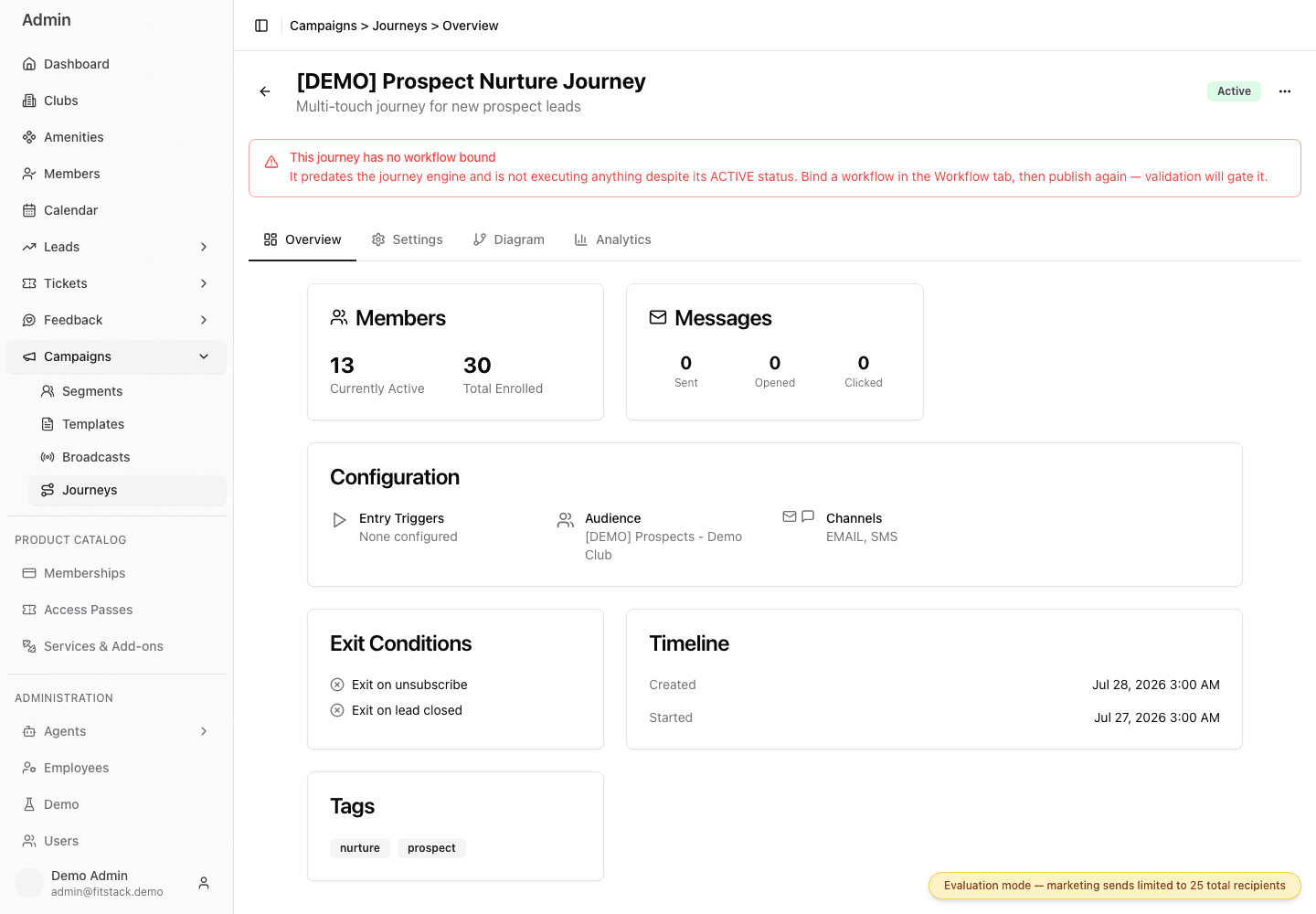
- 1Read status and configuration warnings together.
- 2Compare currently active with total enrolled.
- 3Check headline message activity.
- 4Confirm triggers, audience, channels, and exits.
Do not assume the status badge alone proves that a Journey is running. Open Diagram. A No workflow definition is bound message is a configuration blocker. If a graph appears, read its Draft or Published badge before interpreting the steps; an open draft can appear while existing enrollments continue on their pinned published version. Older records may require product support to repair their binding before they can be safely republished.