Filter guide
Each condition has three parts:
- Field — the information to check.
- Operator — how to compare it.
- Value — what it should match.
Example: Member Status + equals + Active.
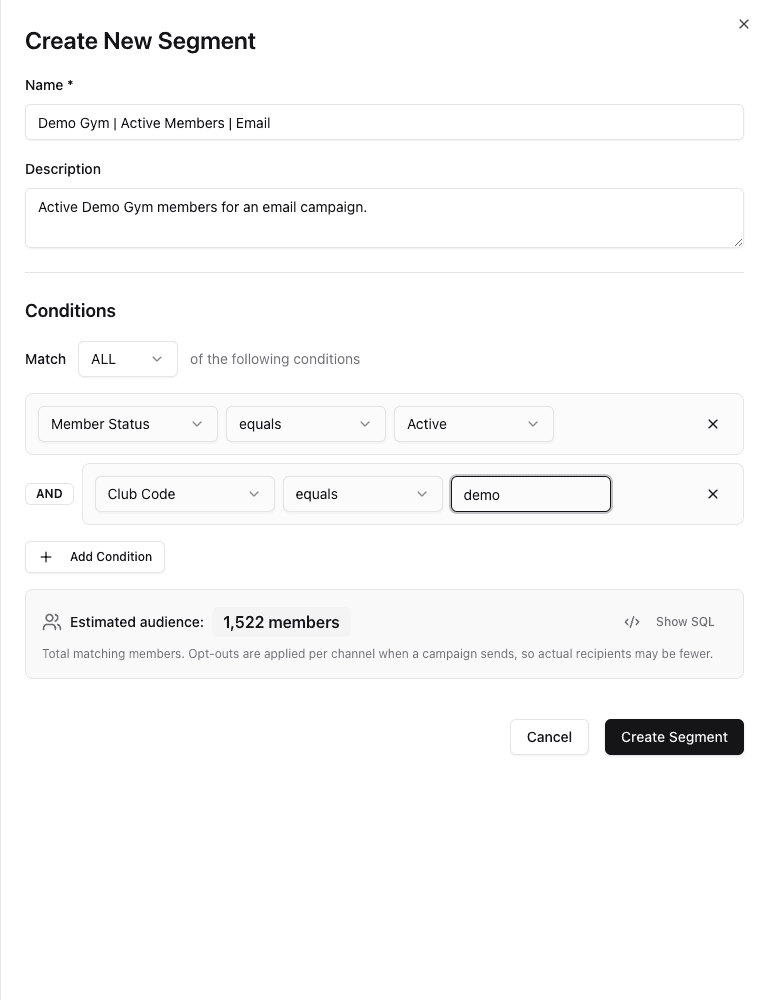
- 1Choose whether ALL or ANY joins the conditions.
- 2Field: the information to check.
- 3Operator: how to compare it.
- 4Value: what should match.
- 5Review the estimate after every rule change.
ALL or ANY?
A person must meet every condition.
A person can meet just one condition.
Use ALL for most targeted broadcasts. Use ANY only when the conditions are true alternatives, such as people in one of two cities.
Beginner-safe fields
| Goal | Field | Safe example |
|---|---|---|
| Limit to one club | Club Code | equals demo |
| Use a readable club value | Club Name, City, or State | equals the exact value |
| Choose a membership state | Member Status | equals Active |
| Check contact information | Email or Phone | is set |
| Limit by member location | City or State | equals the intended value |
| Require permission | Email Consent or SMS Consent | equals Yes |
| Choose a lead state | Lead Status or Lead Stage | equals a listed value |
| Use lead priority | Lead Score | is greater than a chosen score |
Email and SMS are the supported channels in this guide.
Operators in plain language
| Operator | Use it when… | Example |
|---|---|---|
| equals | one exact value must match | Status equals Active |
| does not equal | one exact value must be excluded | State does not equal FL |
| contains | a text field includes a word or fragment | Club Name contains Downtown |
| does not contain | a text field must not include a fragment | Email does not contain test |
| is one of | any value in a short list is acceptable | Status is one of Active, Trial |
| is not one of | values in a short list are excluded | State is not one of AK, HI |
| is set / is not set | information exists or is missing | Phone is set |
| before / after | a date falls on one side of a date | Join Date is after Jan 1 |
| in last N days | a date is recent | Join Date in last 30 days |
| between | a score or date is inside a range | Lead Score is between 60 and 100 |
| greater than / less than | a number or date crosses a threshold | Lead Score is greater than 75 |
The builder only offers operators supported by the selected field. Complete every value before trusting the preview. If FitStack says a condition cannot be applied, fix or remove that condition before saving.
Start with positive rules such as “equals Active” and “Consent equals Yes.” They are easier to review than several exclusions.
Build complexity slowly
- Start with the club condition.
- Add membership or lead criteria.
- Add permission for the broadcast channel.
- Check the count after each condition.
- Stop if one change produces an unexpected jump or drop.
Data can be missing or change
Contact details, consent, membership status, and lead information can change. Use is set when a field must exist, and recalculate important segments before a major broadcast.