Manage club amenities
Amenities help prospective members, members, staff, and supported assistants understand what a club offers. Accurate selection matters: a missing amenity can hide a real capability, while an incorrect selection can set the wrong expectation before a visit.
Understand the shared catalog
FitStack maintains amenity names, groups, descriptions, marketing callouts, benefits, aliases, and alternatives in one shared brand-wide or system-wide catalog. A club does not create its own copy of those records.
The club Amenities tab only answers this question:
Is this shared amenity available at this club?
Selecting or clearing a checkbox adds or removes the club’s connection to that catalog amenity. Use the separate top-level Amenities area to manage the shared catalog.
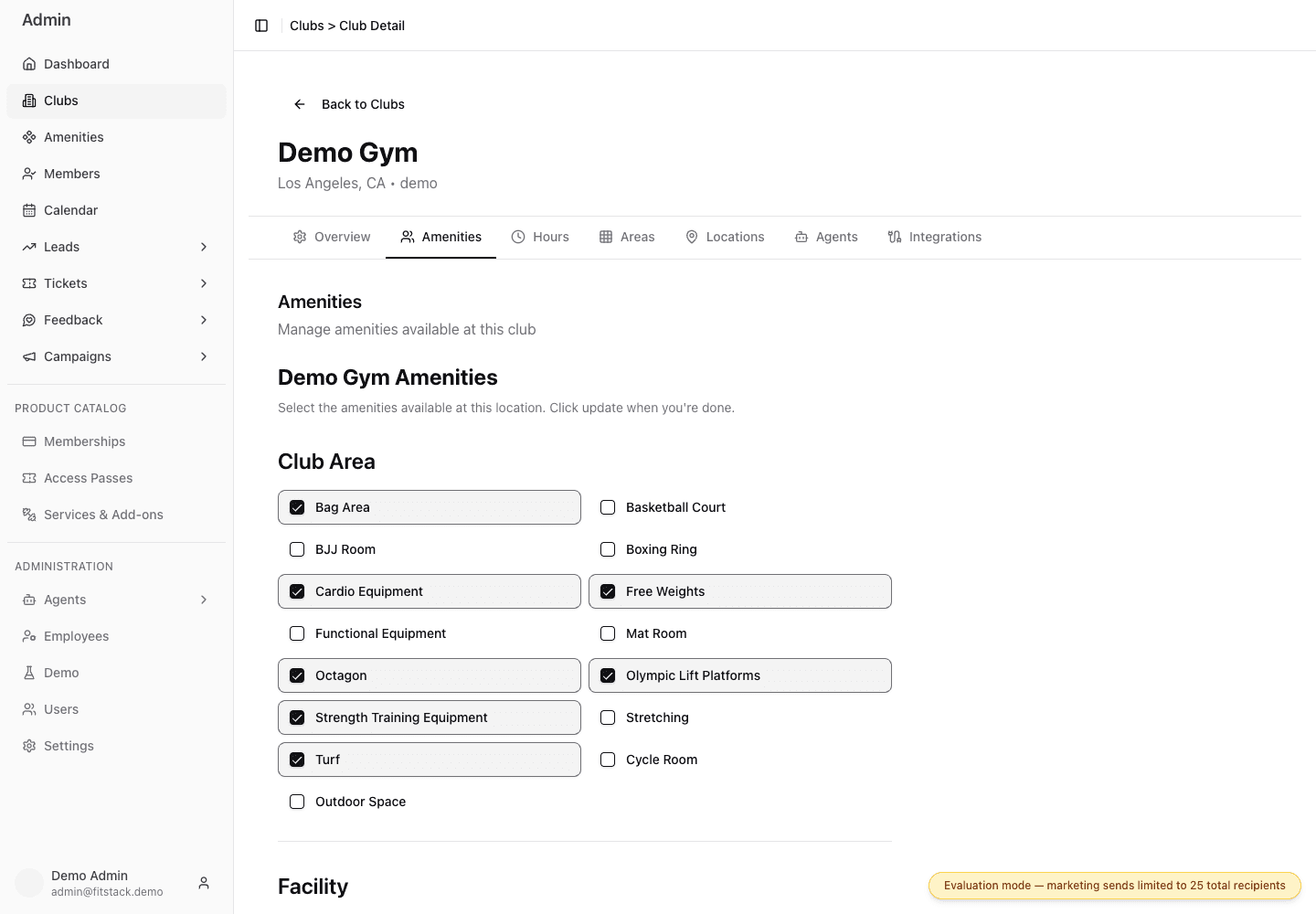
- 1The Amenities tab edits this club's selections.
- 2A checked item is linked to Demo Gym.
- 3An unchecked item remains in the shared catalog but is not assigned here.
Confirm the club
Open Admin → Clubs, select the club, and choose Amenities. Verify the club name in both the page header and the amenities heading.
Review each group
Move through every group, such as Club Area and Facility. Select an amenity only when it is available for member use at this location.
Hover or focus an amenity when you need its shared description, marketing callout, benefits, aliases, or alternatives to distinguish similar choices.
Update the club
Select Update after the complete set has been reviewed. The change updates the club-to-amenity assignments and asks supported public club experiences to refresh.
Verify the result
Reopen Amenities and confirm the intended items remain selected. Review a supported public or assistant experience when the change is time-sensitive.
Do not select an amenity because it exists elsewhere in the brand. The club checkbox represents availability at this specific location.
When the catalog is wrong
If an amenity is missing, duplicated, named incorrectly, or has inaccurate content, do not substitute a different amenity simply to make the club list look complete. Open Admin → Amenities and use Maintain and delete amenities to correct the shared record. If you do not have Admin access, ask an administrator to make the catalog change.