Manage club hours and exceptions
Use weekly hours for the normal operating pattern. Use an exception for one specific date, such as Christmas Day, an early close, a special event, or an unexpected closure.
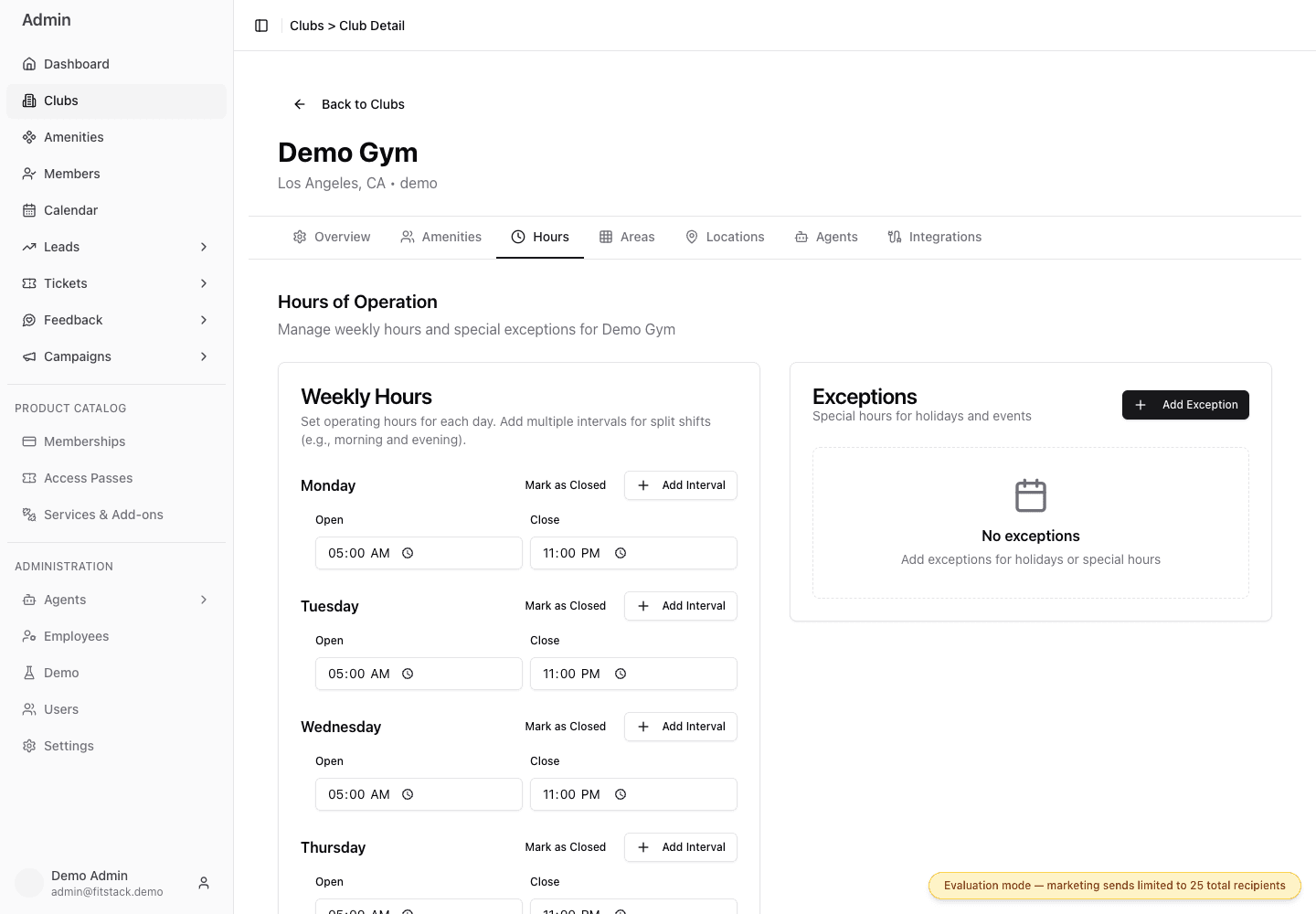
- 1Set the normal opening and closing time for each weekday.
- 2Add intervals for split schedules on the same day.
- 3Add a dated exception for a holiday, event, or closure.
How FitStack chooses club hours
For a requested date, a saved exception takes priority. If no exception exists, FitStack uses the regular hours for that weekday. A closed exception means the club is closed all day; an open exception supplies replacement intervals for that date.
Confirm the club and time zone
Open Admin → Clubs, select the club, and choose Hours. Confirm the club header. If displayed times look wrong, review the club time zone before changing schedules.
Set the weekly pattern
For each weekday:
- enter the normal Open and Close time;
- choose Add Interval when the club closes and reopens the same day; or
- choose Mark as Closed when the club never opens on that weekday.
Select Save Hours. This saves the weekly schedule separately from any exception form.
Add a date exception
Choose Add Exception, give the exception a recognizable name, and select the exact date. For a full closure, select Closed all day. Otherwise leave it clear and enter the replacement hours for that date.

- 1Use a name staff will recognize later.
- 2Choose the exact calendar date.
- 3Closed all day removes the regular intervals for this date.
Choose Create, then verify the exception appears with the intended date and closed or replacement-hours result.
In a browser west of UTC, the exception list can display a stored date one calendar day early. If that happens, choose Edit, confirm the unshifted value in the Date field, and close the sheet without saving. Do not change a correct exception based only on the shifted list label. For a split schedule, use Edit only for this read-only date check.
Review upcoming exceptions
Before publishing holiday information, compare the club’s exception list with the approved operating calendar. You can edit a closed or single-interval exception. For a split schedule with two or more intervals, do not use the edit button: the current edit form loads only the selected interval. Delete the date-level exception, choose Add Exception, and recreate every replacement interval for that date. Remove an exception that no longer applies.
A club exception applies to the club schedule. It does not automatically create matching exceptions for every club area or enrollment location. Add those exceptions separately wherever availability must also change.
Common mistakes
- Changing weekly Friday hours to represent one Christmas Day closure.
- Adding overlapping or duplicate intervals.
- Editing one row of a split-schedule exception and unintentionally removing its other intervals instead of deleting and recreating the complete date.
- Choosing the wrong calendar date because the club time zone is incorrect.
- Updating the club but forgetting a Kids Club, Recovery Center, presale office, or kiosk with its own schedule.